> For the complete documentation index, see [llms.txt](https://docs.kinwall.family/llms.txt). Markdown versions of documentation pages are available by appending `.md` to page URLs; this page is available as [Markdown](https://docs.kinwall.family/using-kinwall/lists.md).
# Lists
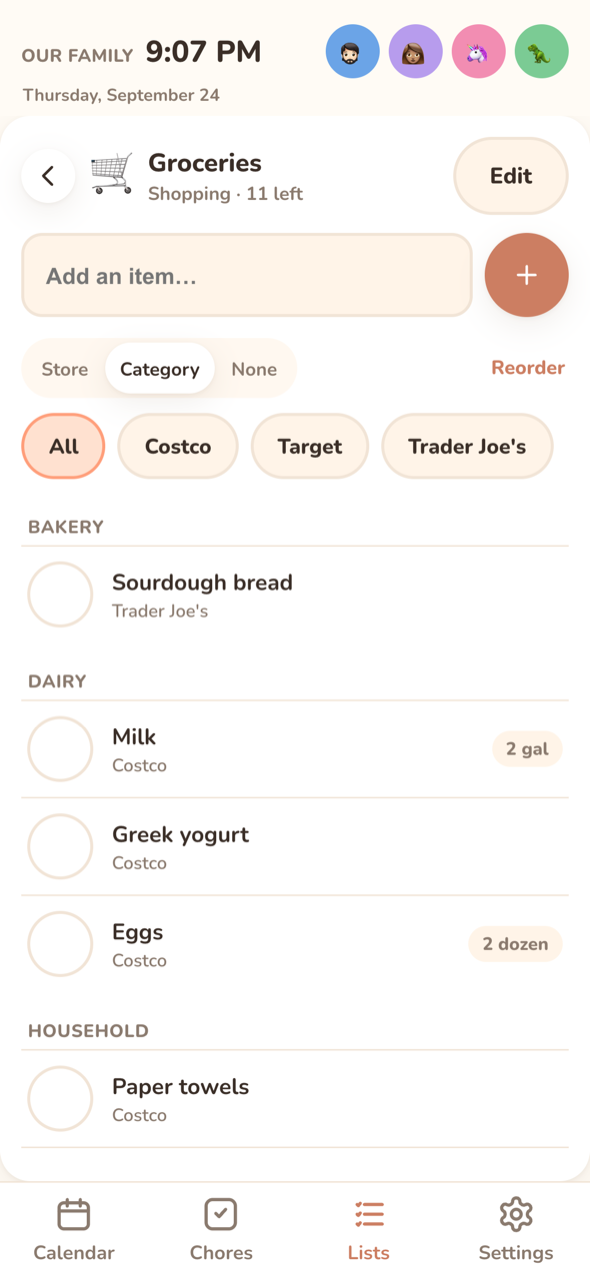 
The Lists tab shows your lists and their open-item counts. On the wall display, the open list sits next to them. On a phone, you tap into one. **New list** or **+** creates a list. Press and hold a list card to edit it.
## Kinds
| Kind | For | Extras |
| ------------ | ------------------------ | ----------------------------------------------------------------------------------------------- |
| **Shopping** | groceries, hardware runs | Items have a **Store** and a **Category**. Group by Store, Category or None (default Category). |
| **To-do** | jobs, errands | Items have an assignee (**Assign to**) and a **Due date**. |
| **Reusable** | packing lists, routines | Items have an assignee. **Reset list** unticks everything (steps too) so you can use it again. |
You can change a list's kind later.
## Editing a list
**Edit** opens **Name**, **Kind**, **Emoji**, **Color** and **Owners (nobody = whole family)**. It also has **Archive** (next to delete) and delete, which removes all the list's items too. Archived lists are hidden from the main Lists view and collect in a collapsed **Archived (*****N*****)** section at the bottom of the list overview. Expand it to **Restore** a list or delete it for good. The API returns them with `GET /api/lists?archived=true`; `PATCH /api/lists/{id} {archived}` archives or restores.
## Adding and ticking items
* Type in the add bar and press Enter. The keyboard stays open for the next item.
* **It remembers where things go**: if you don't give a store or category, Kinwall copies them from the most recently updated item with the same title, on any list.
* Tap the circle to tick an item off. Ticked items move to **Done (*****N*****)**, which you can expand. Use **Clear checked** to delete them, or **Reset list** on reusable lists.
* Long titles wrap to two lines on the row (three in icon-first density); the item sheet always shows the whole title.
* A coloured dot before the title shows the item's **Priority** (see below), and a note icon after it means the item has **Notes** or a **Discussion**.
* An item with a due date shows it in small text under the title: "Due today", "Due Fri, Oct 3", or "Overdue · Sep 22" in red.
* Tap an item to edit it: **Title**, **Priority**, **Steps**, **Quantity** ("2, 1 lb, x3"), **Store** and **Category** (shopping; suggestions come from every list), **Assign to** (to-do and reusable), **Due date** (to-do, with **Clear**), **Linked event**, **Notes** (the item's own description), **Discussion** (see below), and **Order** (**Move up** / **Move down**, manual sort only).
## Priority
Each item has a **Priority**: Low, Normal, High or Urgent. Pick it in the item sheet.
| Priority | On the row | Order |
| ---------- | ---------------------------------------- | ------------ |
| **Urgent** | red dot and a red bar down the left edge | first |
| **High** | orange dot | after urgent |
| **Normal** | nothing | after high |
| **Low** | muted green dot | last |
Screen readers hear the priority with the item ("Urgent priority"). Open items that are overdue move to the top of their priority. Done items drop their priority boost. In the [daily summary](/using-kinwall/notifications.md#daily-summary), urgent items are marked ‼️ and high ones ⭐.
## Sorting
**Sort** in the list toolbar picks how a list's items are ordered. The setting is saved on the list, so every screen shows the same order.
| Sort | Order |
| -------------------- | ----------------------------------------------------------------------- |
| **Manual** (default) | By priority, overdue items first within each, then your own drag order. |
| **Date added** | Newest first. |
| **Due date** | Soonest first. Items with no due date go last. |
| **Priority** | By priority, overdue first, then soonest due date. |
| **A–Z** | Alphabetical, ignoring capital letters. |
Groups (store or category) still come first; the sort applies inside each group. Dragging only works in **Manual**. In the other sorts, the grip is dimmed and tapping it says "Switch to Manual to drag".
The server sorts the same way, so `GET /api/lists/{id}` and MCP's `get_list` return items in the list's order.
## Steps
Break a bigger job into steps ("Tidy the living room": fold blankets, fluff cushions, find the remote). In the item sheet, type in **Add a step…** and press Enter.
* The row shows progress under the title ("2 of 5") with a thin bar.
* Tick steps in the sheet. Ticking the last open step ticks the item itself. Unticking a step on a done item opens the item again.
* Ticking the item ticks all its steps; unticking it unticks them all.
* Reorder steps by dragging the grip, or focus the grip and press Alt+Up / Alt+Down. The trash button deletes a step.
* **One at a time** shows only the next open step, big, with a **Done → next** button. Handy for kids working through a routine on the wall. Each step is announced to screen readers as it's done.
* **Reset list** on a reusable list unticks every step as well.
## Groups and order
* On shopping lists, **Group by** switches between Store, Category and None. **Reorder stores** / **Reorder categories** lets you arrange the groups in the order you walk the shop, then **Save order**.
* Store chips (**All**, then each store) show one store at a time.
* **Drag** an item by its grip to reorder it within its group (Manual sort only). Other groups and done items keep their places. The keyboard alternative is Move up / Move down in the item sheet.
## Linking items to events
Give an item a **Linked event** (picked from the next 30 days) and it becomes a task for that event:
* the list row shows the event's date and title,
* the event's detail sheet lists it under **Tasks**, where you can tick it off or add more ([Events → Linked tasks](/using-kinwall/events.md#linked-tasks)),
* the morning [daily summary](/using-kinwall/notifications.md#daily-summary) shows "To do for today's events".
Separately, open items **due today** on any list get a short "Due today" line in the daily summary.
A recurring local event links by its series, so the task follows every occurrence.
## Discussion
Below the item's **Notes** field, **Discussion** is a thread of notes from the family, each with the poster's avatar and name in their colour ("Remote was under the cushion again"). It works exactly like [notes on events](/using-kinwall/events.md#notes): **+ Add note**, **Post as** a member (or **Someone**), tap a note to edit or delete it. The item's own **Notes** field stays a single description; the discussion is for separate back-and-forth.
Deleting an item (or clearing checked items, or deleting the list) deletes its discussion. Export and import include it.
## Notifications
Devices with **List updates** on get "List updated — *Groceries* has new items" when items are added. This is limited to one notification per list every 10 minutes. See [Notifications](/using-kinwall/notifications.md).
## API and MCP
* `GET/POST /api/lists`, `GET/PATCH/DELETE /api/lists/{id}` (lists carry `sortBy`: `manual`, `added`, `due`, `priority` or `alpha`), `POST /api/lists/{id}/items` (one item or an array; `priority` and `steps: string[]` are optional), `PATCH/DELETE /api/lists/{id}/items/{itemId}`, `POST /api/lists/{id}/clear-completed`, `POST /api/lists/{id}/reset`, `POST /api/lists/{id}/reorder`, `PUT /api/lists/{id}/groups`, `GET /api/events/{id}/items`.
* Items carry `priority` (`low`, `normal`, `high` or `urgent`; older clients sending `high` keep working), `steps` (`[{id, title, done, sort}]`, in order), `stepsDone` and `stepsTotal`.
* Steps: `POST /api/lists/{id}/items/{itemId}/steps` (`{title}`), `PATCH …/steps/{stepId}` (`title`, `done`, `sort`), `DELETE …/steps/{stepId}`, `POST …/steps/reorder` (`{stepIds}`). Each returns the whole updated item, including any automatic complete or re-open.
* MCP: `list_lists`, `create_list`, `update_list` (including `sortBy`), `get_list`, `add_list_items`, `update_list_item`, `set_list_item_done`, `set_step_done`, `get_event_items`. Lists can be referred to by name.
* Discussion: `GET /api/notes?target=list_item:`, `POST /api/notes` `{target, body, memberId?}`, `PATCH/DELETE /api/notes/{id}`; items in `GET /api/lists/{id}` carry `noteCount`. MCP: `list_notes`, `add_note`, `update_note`.
* Display keys have full access to lists, steps and discussions included.
* Export and import include each list's sort, each item's priority and its steps. Older export files import with Manual sort.
---
# Agent Instructions
This documentation is published with GitBook. GitBook is the documentation platform designed so that both humans and AI agents can read, navigate, and reason over technical content effectively. Learn more at gitbook.com.
## Querying This Documentation
If you need additional information that is not directly available in this page, you can query the documentation dynamically by asking a question.
Perform an HTTP GET request on the current page URL with the `ask` query parameter, and the optional `goal` query parameter:
```
GET https://docs.kinwall.family/using-kinwall/lists.md?ask=&goal=
```
`ask` is the immediate question: it should be specific, self-contained, and written in natural language.
`goal` is optional and describes the broader end goal you are ultimately trying to accomplish on behalf of the user. GitBook uses it to tailor the answer towards what is most useful for that goal.
The response will contain a direct answer to the question and relevant excerpts and sources from the documentation.
Use this mechanism when the answer is not explicitly present in the current page, you need clarification or additional context, or you want to retrieve related documentation sections.

The Lists tab shows your lists and their open-item counts. On the wall display, the open list sits next to them. On a phone, you tap into one. **New list** or **+** creates a list. Press and hold a list card to edit it.
## Kinds
| Kind | For | Extras |
| ------------ | ------------------------ | ----------------------------------------------------------------------------------------------- |
| **Shopping** | groceries, hardware runs | Items have a **Store** and a **Category**. Group by Store, Category or None (default Category). |
| **To-do** | jobs, errands | Items have an assignee (**Assign to**) and a **Due date**. |
| **Reusable** | packing lists, routines | Items have an assignee. **Reset list** unticks everything (steps too) so you can use it again. |
You can change a list's kind later.
## Editing a list
**Edit** opens **Name**, **Kind**, **Emoji**, **Color** and **Owners (nobody = whole family)**. It also has **Archive** (next to delete) and delete, which removes all the list's items too. Archived lists are hidden from the main Lists view and collect in a collapsed **Archived (*****N*****)** section at the bottom of the list overview. Expand it to **Restore** a list or delete it for good. The API returns them with `GET /api/lists?archived=true`; `PATCH /api/lists/{id} {archived}` archives or restores.
## Adding and ticking items
* Type in the add bar and press Enter. The keyboard stays open for the next item.
* **It remembers where things go**: if you don't give a store or category, Kinwall copies them from the most recently updated item with the same title, on any list.
* Tap the circle to tick an item off. Ticked items move to **Done (*****N*****)**, which you can expand. Use **Clear checked** to delete them, or **Reset list** on reusable lists.
* Long titles wrap to two lines on the row (three in icon-first density); the item sheet always shows the whole title.
* A coloured dot before the title shows the item's **Priority** (see below), and a note icon after it means the item has **Notes** or a **Discussion**.
* An item with a due date shows it in small text under the title: "Due today", "Due Fri, Oct 3", or "Overdue · Sep 22" in red.
* Tap an item to edit it: **Title**, **Priority**, **Steps**, **Quantity** ("2, 1 lb, x3"), **Store** and **Category** (shopping; suggestions come from every list), **Assign to** (to-do and reusable), **Due date** (to-do, with **Clear**), **Linked event**, **Notes** (the item's own description), **Discussion** (see below), and **Order** (**Move up** / **Move down**, manual sort only).
## Priority
Each item has a **Priority**: Low, Normal, High or Urgent. Pick it in the item sheet.
| Priority | On the row | Order |
| ---------- | ---------------------------------------- | ------------ |
| **Urgent** | red dot and a red bar down the left edge | first |
| **High** | orange dot | after urgent |
| **Normal** | nothing | after high |
| **Low** | muted green dot | last |
Screen readers hear the priority with the item ("Urgent priority"). Open items that are overdue move to the top of their priority. Done items drop their priority boost. In the [daily summary](/using-kinwall/notifications.md#daily-summary), urgent items are marked ‼️ and high ones ⭐.
## Sorting
**Sort** in the list toolbar picks how a list's items are ordered. The setting is saved on the list, so every screen shows the same order.
| Sort | Order |
| -------------------- | ----------------------------------------------------------------------- |
| **Manual** (default) | By priority, overdue items first within each, then your own drag order. |
| **Date added** | Newest first. |
| **Due date** | Soonest first. Items with no due date go last. |
| **Priority** | By priority, overdue first, then soonest due date. |
| **A–Z** | Alphabetical, ignoring capital letters. |
Groups (store or category) still come first; the sort applies inside each group. Dragging only works in **Manual**. In the other sorts, the grip is dimmed and tapping it says "Switch to Manual to drag".
The server sorts the same way, so `GET /api/lists/{id}` and MCP's `get_list` return items in the list's order.
## Steps
Break a bigger job into steps ("Tidy the living room": fold blankets, fluff cushions, find the remote). In the item sheet, type in **Add a step…** and press Enter.
* The row shows progress under the title ("2 of 5") with a thin bar.
* Tick steps in the sheet. Ticking the last open step ticks the item itself. Unticking a step on a done item opens the item again.
* Ticking the item ticks all its steps; unticking it unticks them all.
* Reorder steps by dragging the grip, or focus the grip and press Alt+Up / Alt+Down. The trash button deletes a step.
* **One at a time** shows only the next open step, big, with a **Done → next** button. Handy for kids working through a routine on the wall. Each step is announced to screen readers as it's done.
* **Reset list** on a reusable list unticks every step as well.
## Groups and order
* On shopping lists, **Group by** switches between Store, Category and None. **Reorder stores** / **Reorder categories** lets you arrange the groups in the order you walk the shop, then **Save order**.
* Store chips (**All**, then each store) show one store at a time.
* **Drag** an item by its grip to reorder it within its group (Manual sort only). Other groups and done items keep their places. The keyboard alternative is Move up / Move down in the item sheet.
## Linking items to events
Give an item a **Linked event** (picked from the next 30 days) and it becomes a task for that event:
* the list row shows the event's date and title,
* the event's detail sheet lists it under **Tasks**, where you can tick it off or add more ([Events → Linked tasks](/using-kinwall/events.md#linked-tasks)),
* the morning [daily summary](/using-kinwall/notifications.md#daily-summary) shows "To do for today's events".
Separately, open items **due today** on any list get a short "Due today" line in the daily summary.
A recurring local event links by its series, so the task follows every occurrence.
## Discussion
Below the item's **Notes** field, **Discussion** is a thread of notes from the family, each with the poster's avatar and name in their colour ("Remote was under the cushion again"). It works exactly like [notes on events](/using-kinwall/events.md#notes): **+ Add note**, **Post as** a member (or **Someone**), tap a note to edit or delete it. The item's own **Notes** field stays a single description; the discussion is for separate back-and-forth.
Deleting an item (or clearing checked items, or deleting the list) deletes its discussion. Export and import include it.
## Notifications
Devices with **List updates** on get "List updated — *Groceries* has new items" when items are added. This is limited to one notification per list every 10 minutes. See [Notifications](/using-kinwall/notifications.md).
## API and MCP
* `GET/POST /api/lists`, `GET/PATCH/DELETE /api/lists/{id}` (lists carry `sortBy`: `manual`, `added`, `due`, `priority` or `alpha`), `POST /api/lists/{id}/items` (one item or an array; `priority` and `steps: string[]` are optional), `PATCH/DELETE /api/lists/{id}/items/{itemId}`, `POST /api/lists/{id}/clear-completed`, `POST /api/lists/{id}/reset`, `POST /api/lists/{id}/reorder`, `PUT /api/lists/{id}/groups`, `GET /api/events/{id}/items`.
* Items carry `priority` (`low`, `normal`, `high` or `urgent`; older clients sending `high` keep working), `steps` (`[{id, title, done, sort}]`, in order), `stepsDone` and `stepsTotal`.
* Steps: `POST /api/lists/{id}/items/{itemId}/steps` (`{title}`), `PATCH …/steps/{stepId}` (`title`, `done`, `sort`), `DELETE …/steps/{stepId}`, `POST …/steps/reorder` (`{stepIds}`). Each returns the whole updated item, including any automatic complete or re-open.
* MCP: `list_lists`, `create_list`, `update_list` (including `sortBy`), `get_list`, `add_list_items`, `update_list_item`, `set_list_item_done`, `set_step_done`, `get_event_items`. Lists can be referred to by name.
* Discussion: `GET /api/notes?target=list_item:`, `POST /api/notes` `{target, body, memberId?}`, `PATCH/DELETE /api/notes/{id}`; items in `GET /api/lists/{id}` carry `noteCount`. MCP: `list_notes`, `add_note`, `update_note`.
* Display keys have full access to lists, steps and discussions included.
* Export and import include each list's sort, each item's priority and its steps. Older export files import with Manual sort.
---
# Agent Instructions
This documentation is published with GitBook. GitBook is the documentation platform designed so that both humans and AI agents can read, navigate, and reason over technical content effectively. Learn more at gitbook.com.
## Querying This Documentation
If you need additional information that is not directly available in this page, you can query the documentation dynamically by asking a question.
Perform an HTTP GET request on the current page URL with the `ask` query parameter, and the optional `goal` query parameter:
```
GET https://docs.kinwall.family/using-kinwall/lists.md?ask=&goal=
```
`ask` is the immediate question: it should be specific, self-contained, and written in natural language.
`goal` is optional and describes the broader end goal you are ultimately trying to accomplish on behalf of the user. GitBook uses it to tailor the answer towards what is most useful for that goal.
The response will contain a direct answer to the question and relevant excerpts and sources from the documentation.
Use this mechanism when the answer is not explicitly present in the current page, you need clarification or additional context, or you want to retrieve related documentation sections.