> For the complete documentation index, see [llms.txt](https://docs.kinwall.family/llms.txt). Markdown versions of documentation pages are available by appending `.md` to page URLs; this page is available as [Markdown](https://docs.kinwall.family/using-kinwall/calendar.md).

# Calendar

The Calendar tab is the main screen. It merges every enabled calendar into one view. Each event is coloured by its [category](/using-kinwall/categories.md), or by its family member if it has no category.

![Week view on the wall iPad](https://4251322152-files.gitbook.io/~/files/v0/b/gitbook-x-prod.appspot.com/o/spaces%2F2kP7ksVUPkKNBdqDQdkp%2Fuploads%2Fgit-blob-b23f3803bf6a13d056d5714582f69ba6bbcdc618%2Fipad-week.png?alt=media)

## Views

Use the segmented control at the top to switch views.

| View                      | Shows                                                                                                                                  | Paging (◀ ▶ or swipe) |
| ------------------------- | -------------------------------------------------------------------------------------------------------------------------------------- | --------------------- |
| **Week** (iPad / desktop) | 7 day columns with an all-day row and a time grid. The week starts on Sunday or Monday, per [General](/settings-reference/general.md). | ±1 week               |
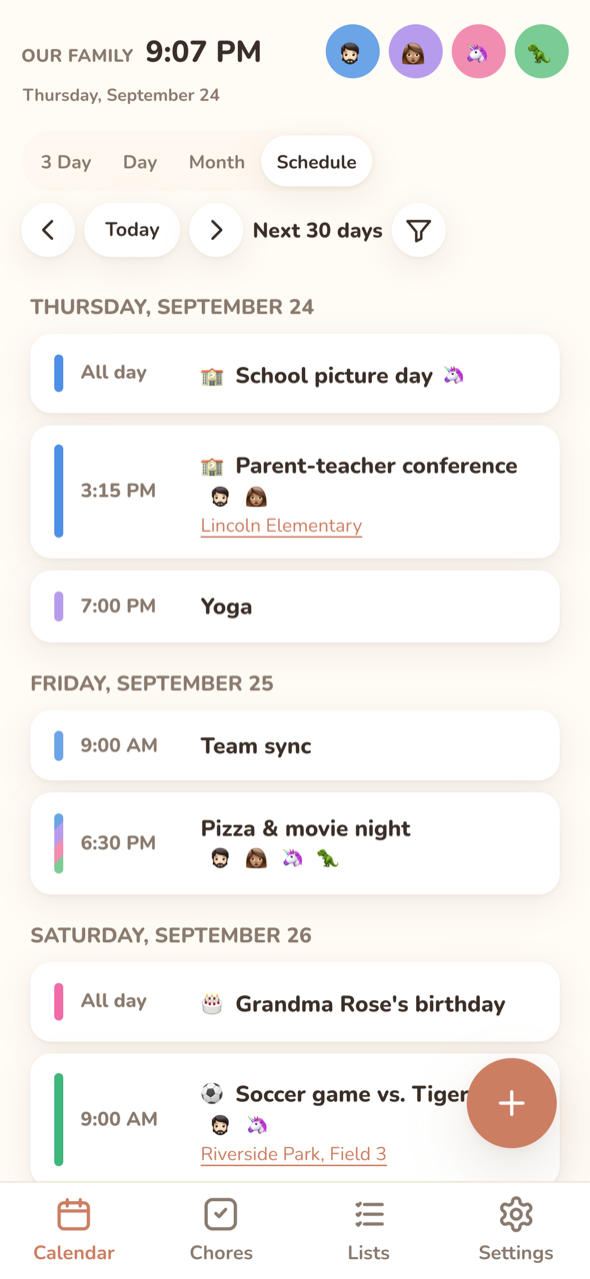
| **3 Day** (phones)        | The same grid, 3 days from the anchor date.                                                                                            | ±3 days               |
| **Day**                   | A time grid for one day, one column per family member.                                                                                 | ±1 day                |
| **Month**                 | A month grid with event chips. When a day is full, it shows "+N more".                                                                 | ±1 month              |
| **Schedule**              | An agenda of the next 30 days, grouped by day. Location lines link to maps.                                                            | ±30 days              |

Phones open on **Schedule**. The wall display opens on **Week**. You can switch views any time.
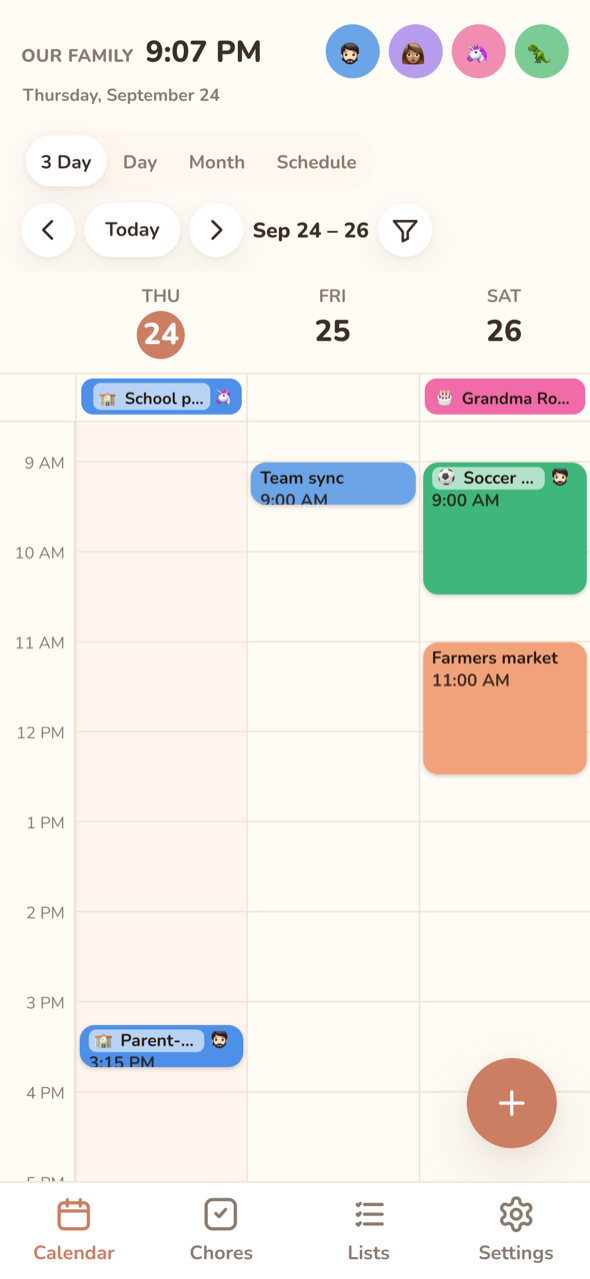
<div><img src="https://4251322152-files.gitbook.io/~/files/v0/b/gitbook-x-prod.appspot.com/o/spaces%2F2kP7ksVUPkKNBdqDQdkp%2Fuploads%2Fgit-blob-f936b7efea913c2e222dd7c46b7efc02b0d113bc%2Fphone-3day.png?alt=media" alt="3 Day view on a phone" width="32%"> <img src="https://4251322152-files.gitbook.io/~/files/v0/b/gitbook-x-prod.appspot.com/o/spaces%2F2kP7ksVUPkKNBdqDQdkp%2Fuploads%2Fgit-blob-d12edf482651fce8ecd5e6507e1295f63a8b3af9%2Fphone-schedule.png?alt=media" alt="Schedule view on a phone" width="32%"></div>

## Navigating

* **◀ / ▶** or **swipe** left and right to page. The new period slides in from the side you swiped toward.
* **Today** jumps back to the current date.
* Tap a **day header** (Week) or a **day cell** (Month) to open that day in Day view.
* Tap an **empty slot** in the time grid to add an event at that time, or tap the **+** button.
* Tap an **event** to open its detail sheet. See [Events](/using-kinwall/events.md).
* Keyboard: arrow keys move between day headers, and Enter opens the day.
* After 2 minutes idle, the app returns to today and closes any open sheet.

## Filters

### By family member

Tap a member's avatar in the header to open [their snapshot](/using-kinwall/snapshot.md). Its **Show only … on the calendar** switch shows only their events; the other avatars dim. Turn it off to clear the filter. This filter also applies to the Chores tab.

### By category

When any categories exist, a **filter** button appears in the toolbar. It opens **Show categories**:

* Pick one or more categories. **No category** matches events without one.
* With nothing picked, every event shows. **Show all** clears the selection.
* A badge on the button shows how many categories are picked.
* The filter is saved **per device**. A wall display can hide work events for good while phones still see everything.
* Categories deleted since you picked them are ignored, so a stale filter can't hide everything.

The member and category filters combine, and every view honours both.

## How events are coloured

* **Category set**: the category colour, with the category emoji before the title. Member avatars still show.
* **One member**: that member's colour.
* **Two or more members**: diagonal stripes in each member's colour, with their avatars.
* **No member**: the calendar's colour.

Who an event is for never depends on telling colours apart: the avatars always show too.

## Opening from a notification

Tapping a reminder notification opens `#/calendar?event=<id>&at=<start>`. The calendar jumps to that day and opens the event.


---

# Agent Instructions
This documentation is published with GitBook. GitBook is the documentation platform designed so that both humans and AI agents can read, navigate, and reason over technical content effectively. Learn more at gitbook.com.

## Querying This Documentation
If you need additional information that is not directly available in this page, you can query the documentation dynamically by asking a question.

Perform an HTTP GET request on the current page URL with the `ask` query parameter, and the optional `goal` query parameter:

```
GET https://docs.kinwall.family/using-kinwall/calendar.md?ask=<question>&goal=<endgoal>
```

`ask` is the immediate question: it should be specific, self-contained, and written in natural language.
`goal` is optional and describes the broader end goal you are ultimately trying to accomplish on behalf of the user. GitBook uses it to tailor the answer towards what is most useful for that goal.

The response will contain a direct answer to the question and relevant excerpts and sources from the documentation.

Use this mechanism when the answer is not explicitly present in the current page, you need clarification or additional context, or you want to retrieve related documentation sections.